Monday, February 27, 2023

How to draw on Mac while recording the videos

 I recently started recording videos for my Youtube channel and when you are doing some programming walkthrough it is very important to make sure that you grab the viewers attention while explaining. 

You might be showing a lot of code or few photos on the screens and you want to make sure that viewer are looking at the section of the video which you are explaining. 

The tool you can use to draw on the Mac is ScreenBrush. It is an awesome tool and provide lots of flexibility.  


Note: This is not an affliated link or do I have any partnership with this tool. I just found the tool and really liked it and wanted to shared with the public. 

Friday, April 22, 2022

Guide to manage secrets in SwiftUI app

You are developing the app and a time comes when you need to integrate with other systems like Auth0, Firebase, or some other system that you need for your app. 

Tip: Never put the secrets in the code and check in to the repository. 

I have found that keeping the secrets separate from the code is the best way possible. So how do we do it? 

Step 1 - Create a Configuration file

Create a configuration file that will keep the secret variables and the values for your app. e.g. you are integrating RevenueCat in your application to manage the subscription. RevenueCat requires you to create an API key for the purchases and use that in your app. 

Select New File and search for Configuration Settings File. Select the template and name the file and create it. 


New configuration file


Once the file is created you can add the secret api key in the file. The format you want to follow is <variable name> = <value> e.g. let's name the variable PURCHASES_API_KEY then the value entry in the file will be 

PURCHASES_API_KEY = thisIs_yoursecretapikeyforpurchases

Step - 2 Add an entry to info.plist file

Now add a String entry to your info.plist file and reference the variable in the entry as shown below


Info.plist file entry

Step - 3 Access the value in swift

Each source code follows some kind of pattern or something for generic code. Like accessing something from the Bundle, I am posting a sample code that you can use to access the variable but check your source code for any pattern that might be followed for this kind of code, or do what you feel like a good code for you. 

var purchaseKey = ""

    if let key = Bundle.main.infoDictionary?["PURCHASES_API_KEY"] as? String {

      purchaseKey = key

    }

    else {

      purchaseKey = ""

    }


Step - 4 Where to keep the secrets

If you are building an enterprise app there will be a CI/CD pipeline and you would save the secrets in the vault provided by the Tooling. e.g. AzureDev Ops or Bitrise etc. 

What if you are an Indie dev and you just build the app just on your laptop and just deploy it directly to AppStore connect? Well, you can use some browser-based Password managers and put your secrets there. 

Alternatively, you can just create a secure Note by locking the Note. 


The choice is completely yours how you want to keep your secrets secrets but never keep them in your source code :)

The same applies to your GoogleServices json file, do not check in the file with your source code. Keep it separate. 

Tip: Add these secret files to the gitignore file of your repo so that you never accidentally check in them.

Now, what if you have check-in a secret to your git repo and it is in the history now? Well, subscribe and stay updated with the next post where we talk about how to keep an eye on your secrets in your code and what can you do if you check them in accedently. 

Happy coding!!

Saturday, April 2, 2022

Implementing Basic Auth0 in SwiftUI using Universal Login

Auth0 provides different mechanisms like SAML, OAuth, OIDC, and WS-Fed. I have looked into OAuth and will cover that today. Before jumping into implementation let's talk about basic terms which are used in the implementation.

Identity

Identity is something that proves who you are. e.g. if you have booked a flight and show up at an airport they would check your passport and hence proves that you are the one who the ticket is booked for and they compare the Given name, surname, passport number, etc. 

But here we are talking about digital identity, which consists of usernames, emails, and passwords. In some cases, it can be biometric as well like touch Id and face Id. 

Authentication

Authentication is the process of validating that the provided user's identity details are valid and have been verified by the system. Once this is completed the system gets user identity which has information about the user e.g. name, age, maybe roles, or other information that is needed by the system.

Following are terms related to Authentication which you must have heard people talking about around you. 

Single-factor

If you are using only a single form of authentication e.g just user name and password to get into the system. Or just by swiping your access card.

Two-factor or 2FA

2FA is the latest term that is very popular and is a must IMHO. There are a few ways you can set up 2FA
  1. Using one time passwords that are sent to your mobile/phone
  2. Use an Authenticator app and use a code from the app which is required to be entered every time to log in.

Multi-factor or MFA

MFA is when we use more than 2 pieces of a user's identity to verify them e.g. along with username/password and OTP, users are using some kind of biometric to get into the system.

Authorization

You must have seen the sign that reads "Authorized personnel only" at buildings or offices. That means that you need to special access code or badge to access those areas. 

It works in a similar way in digital systems, once you are authenticated, the system gets the user's identity and with the identity, it will know what kind of access the user has. The most basic roles are admin users and not normal users. Admins have special access and can have powers to maintain the system and do other operational activities. Systems can have different roles and groups to manage different access levels for the users. 

Now you know all the basic terms which are used when we set up any kind of system which involves setting up the login access and then customizing the system based on the level of access users have or what we say what role the user belongs to. 


I hope these terms make sense to you. Feel free to do some more search and make sure you understand these terms before moving forward. 

Ok, so now let's jump into some coding and see how we implement these in the real world. 

Auth0 has a toolkit/SDK for native iOS apps and we will use the new Swift Package Manger or SPM to add the toolkit to the SwiftUI app. Create a new Xcode project if you are starting or you can add a package to the existing project by going to File -> Add Package.

Add Package

You do not have to use SPM there are other installation options like Cocoapods or Carthage. After clicking Add Package get the URL for the Auth0 swift spm package and put it in the top right box as shown in the image below and should see the package. Click Add Package button on the bottom right and it will add the package to your project.

Package search


This will add the Auth0 package and any dependencies for this package like JWTDecode and Simple Keychain.

Auth0 package dependancies

I will be using Auth0 universal login to demo this integration for now but will go into more advanced implementations later. What it means is that we will use the login UI provided by Auth0 and all the features. 

To get started first thing is to create an account on Auth0 you can follow this link to sign up for Auth0. Once you create the account you need to register your app with Auth0. From the home page go to Applications -> Applications and click Create Application

Auth0 Create Application


Enter a name for the app, and select Mobile option. In the Settings tab after you create app you can see the Domain and ClientId. 

Add a new plist file to the project and add these to the newly added info plist file.

Auth0 info plist


Note: You want to do this for testing the app but do not check in the secrets to remote repository. Check this article in which I explained how to use and store secrets in iOS app. 

Once you finish the plist changes nexe thing is to build Allowed callback urls and logout urls. The format for Auth0 to build thse urls is format as below

{BUNDLE_IDENTIFIER}://{YOUR_DOMAIN}/ios/{BUNDLE_IDENTIFIER}/callback

The bundle identifier can be found as shown in image below. Copy the bundle identifier from project and build the url.


use the same url for Allowed Callback URLs and Allowed Logout URLs under the Application URIs section. 


Once you update the callback urls and then createa user that you can use to login once you have the Auth0 integrated in the app. Go to User Management -> Users and create a new user. 

Create User

Let's write some code and get Auth0 working in the sample app. Add a new view that is going to display the basic UI to login and logout actions. Let's call it RootView

import SwiftUI


struct RootView: View {

  @State var isLoggedIn = false


  @StateObject var viewModel = RootViewModel()

  var body: some View {

    VStack(spacing: 20) {

      if viewModel.isAuthenticated {

        Text("Welcome")

        Button(action: viewModel.logout) {

          Text("logout")

        }

      } else {

        Text("Welcome to codewithKarma")

        Button(action: viewModel.login) {

          Text("Login")

        }

      }

    }

  }

}


struct LoginView_Previews: PreviewProvider {

  static var previews: some View {

    RootView()

  }

}

So we need 2 actions login and logout. Let's create the Viewmodel and add these functions in the viewmodel

import Auth0

import Combine


class RootViewModel: ObservableObject {

  @Published var isAuthenticated = false

  func login() {

    Auth0

      .webAuth()

      .start { result in

        switch result {


        case .failure(let error):

          print("Failed with: \(error)")


        case .success(let credentials):

          print(credentials)

          self.isAuthenticated = true

        }

      }

  }


  func logout() {

    Auth0

      .webAuth()

      .clearSession { result in

        switch result {

        case .failure(let error):

          print("Failed with: \(error)")

        case .success:

          self.isAuthenticated = false

        }

      }

  }

}


View the print output and try to play with the parameters and see what comes in the parameters, 

Wrap up!

This is the most basic integration of Auth0 to the native iOS app using the Universal Login. I hope you will be able to achieve this, if you have any questions do let me know in comments.

Happy Coding!!

Saturday, March 26, 2022

Insert Jump break in Google blogger new interface

 Google has recently updated the blogger interface and has introduced so many great features. One of the features of the blogger is that you can put a jump break in the article and if you are showing multiple blogs on the landing page, then that break will put a jump and a Read more link. 

With new changes, the option has moved. To insert jump break in the page you have to be in the Compose View and in the toolbar click ... and then choose Insert Jump break as shown in the image below.


insert jump break


Thursday, March 24, 2022

Every iOS developer should know these Xcode tricks

 As iOS Developer you must be spending 8-9 hours of the day using Xcode. It is really important that you know the IDE to get most out of it and get more efficient with coding.

Refresh Canvas and close/open canvas


While using SwiftUI one of things you interact most is SwiftUI previewer and we see the Resume button on the previewer and have to click it to so many times. 


Well there is a keyboard shortcut that can make your life easier. By default it is set to Option + Command + P but you can reconfigure it your liking. e.g. I have set it to Command + P


and to do this I had to remove the shortcut for Print. Let's be very clear we do not do Print command from Xcode every day :), So I choose the nearest key to the default one.

Another good shortcut to know if Opening and closing the Canvas, May be there are times where you want to just focus on code and get some more real estate to work with and just want to close the canvas and then once done you want to reopen it again. You can use Option + Command + return to toggle the canvas visibility. Again you can use Xcode keybinding to reconfigure it to your liking.

Open Quickly

If you are working on large project and working on few files then you must know this feature of Xcode. Open quickly let's you open files with you know the name of the file. Press Command + Shift + O to open it and then just start trying the name and you will see the list


A companion option to this one is show only recent files toggle in the project navigator. When enabled it will only show the files you have recently interact with. 


Rename refactoring

Tuesday, March 22, 2022

How to enable spell checking in XCode

 Do you get a lot of PR comments for spelling mistakes? Then this will help you a lot to fix those issue while you are typing.

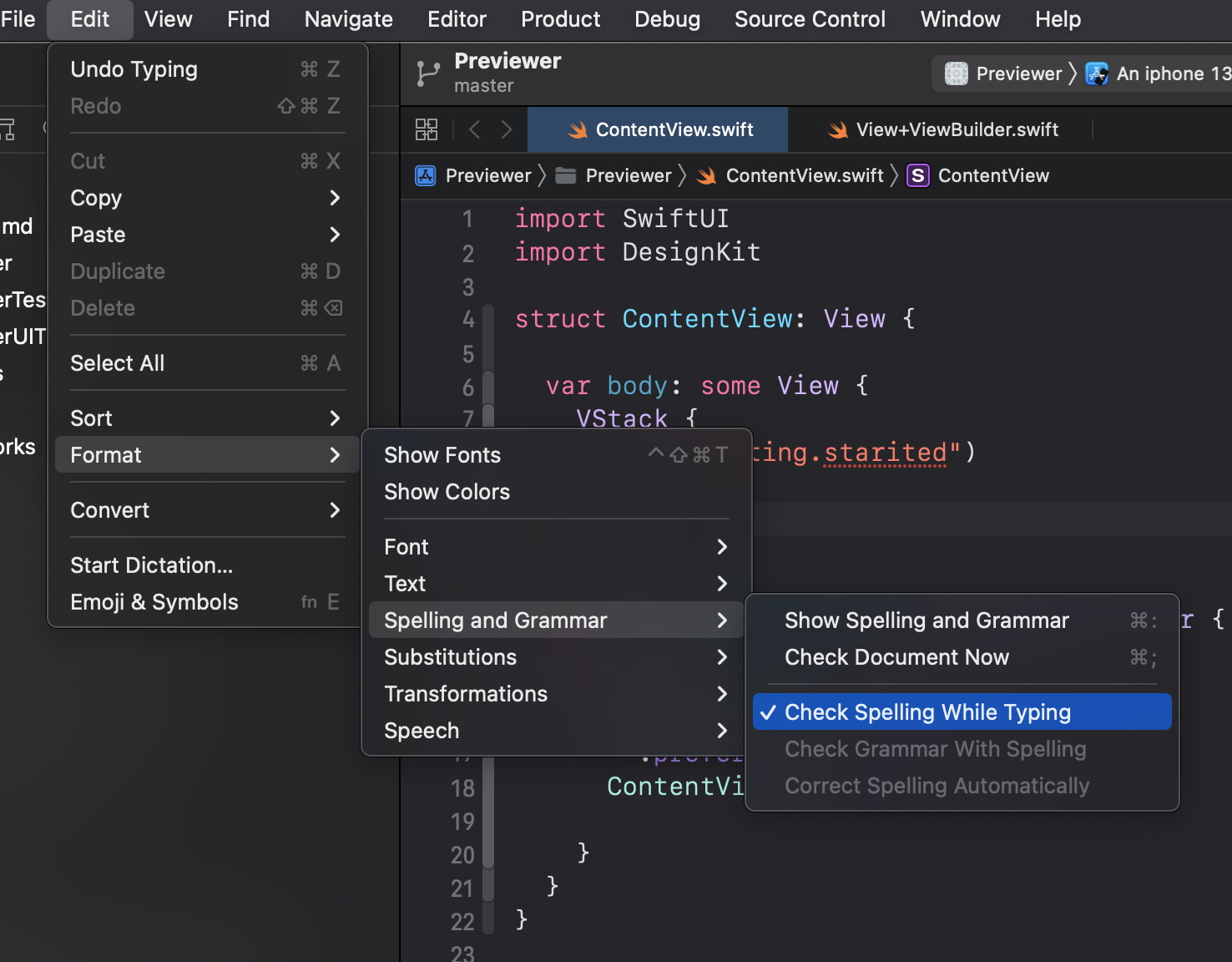
You can navigated to Edit -> Format -> Spelling and Grammar  and then select ✔Check Spelling While Typing option so that you get live spell checking.


As you can see in screenshot my misspelled word is highlighted with dotted red underline. 

Enjoy Coding!!

Guide to SwiftUI layout and presentation controls in iOS

SwiftUI Layout Containers


It is always better to know about all the tools before you start your DIY project. You need to know what tools are available and what each tool can be used for. The same strategy can be applied to UI design. If you know all the available tools provided by the SwiftUI framework then you will be able to apply that knowledge to the beautiful designs that your designer has provided you with. Following are the Layout containers provided by SwiftUI.

HStack

you can refer HStack as a horizontal stack. You want to stack your controls shown in the image below. 

Horizontal plates stacking


The views in SwiftUI are aligned in a similar fashion as shown in image below

SwiftUI HStack


LazyHStack

As the name says this is a Lazy container. As the keyword, Lazy in a programming language is a strategy to delay the initialization until it is needed. The views in the LazyStack are not initialized until they are needed. 

You can try this code and see how it works. 

import SwiftUI


struct CustomText: View {

  private let index: Int

  init(index: Int) {

    print("init CustomText \(index)")

    self.index = index

  }

  var body: some View {

    Text("This is custom text view")

  }

}


struct ContentView: View {

    var body: some View {

      ScrollView(.horizontal) {

        LazyHStack {

          ForEach(0...100, id:\.self) { index in

            CustomText(index: index)

          }

        }

      }

    }

}

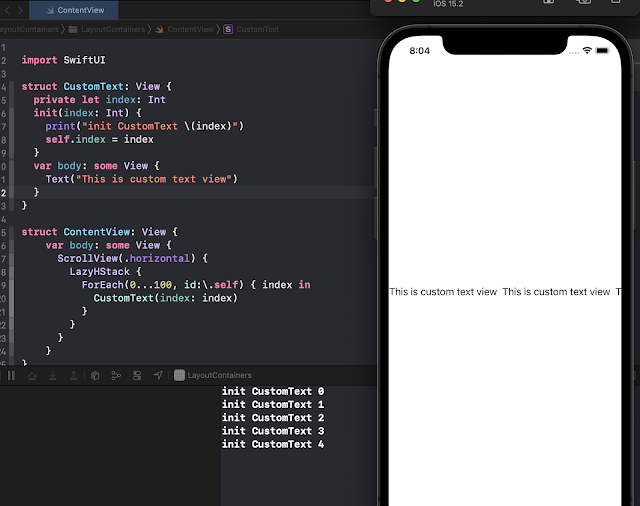
It should look like as shown in image below when you first run it. 

LazyHStack Image


VStack

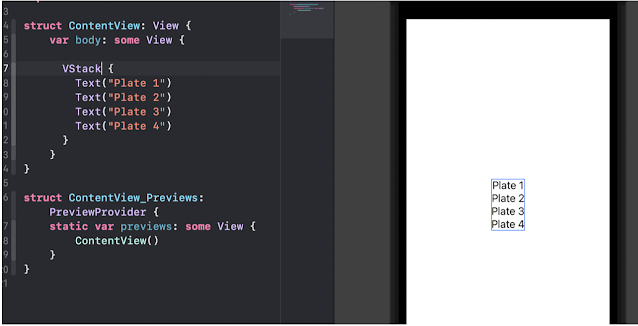
The Stack is referred to as vertical stack e.g. as shown in the image below


Vertical Stack plates


The corresponding SwiftUI views are stacked in a similar fashion as shown in the image below.

SwiftUI VStack


LazyVStack

LazyVStack works very similar to LazyHStack, it's just that it will align the items vertically. Before you read further, I want you to try the code from the LazyHStack section and just change the LazyHStack to LazyVStack. 

Check the output in the debug window. Must be wondering what is going on there. All the items are getting rendered. 

So what should you do it fix it? Try it before looking at the code below. 

|

|

|

I am sure you have tried it. The thing is that you need to change the ScrollView to be .vertical.

import SwiftUI


struct CustomText: View {

  private let index: Int

  init(index: Int) {

    print("init CustomText \(index)")

    self.index = index

  }

  var body: some View {

    Text("This is custom text view")

  }

}


struct ContentView: View {

    var body: some View {

      ScrollView(.vertical) {

        LazyVStack(alignment: .center, spacing: 50) {

          ForEach(0...100, id:\.self) { index in

            CustomText(index: index)

          }

        }

      }

    }

}

Thursday, October 8, 2020

Ionic Capacitor CI/CD using new yaml pipeline with multiple stages

The Ionic Capacitor is a new framework to build cross-platform apps. In this article, we will learn how to set up an Azure DevOps pipeline to build and deploy to AppCenter to distribute to test users.

For simplicity, I am going to build only the android project in this article. You can always add more jobs to run in parallel to build the other environments. Also, I am assuming that you have some experience build Azure pipelines and know about defining variables in the pipeline and how to store secrets in Secure Files and Variables. Please let me know in the comments if there anything specific about the pipeline you don't understand,

I started with creating an empty yaml pipeline and here you have different options to choose your repo from. I have my repo on Azure reports Git and will select that and choose my repo from the next screen. 


New pipeline

Once you select your repo you will get some recommendations in the Configure 
Configure your pipeline


I picked up the starter pipeline to get the basic pipeline in place, which will checkout the branch based on the trigger branch, which by default will be master.

Once you select the Starter pipeline you will get something like this.


# Starter pipeline
# Start with a minimal pipeline that you can customize to build and deploy your code.
# Add steps that build, run tests, deploy, and more:
# https://aka.ms/yaml

trigger:
master

pool:
  vmImage'ubuntu-latest'

steps:
scriptecho Hello, world!
  displayName'Run a one-line script'

script: |
    echo Add other tasks to build, test, and deploy your project.
    echo See https://aka.ms/yaml
  displayName'Run a multi-line script'

we will start to make changes to the pipeline.

Sunday, July 26, 2020

Weather App SwiftUI, OpenWeatherMap and Combine using MVVM

I have started the iOS 13 & Swift 5 course on Udemy. I am really loving the course, the instructor Angela is awesome. 

I was not interested in UIKit development and I had started and stopped few times in past years with UIKit. But, SwiftUI is something that is bringing my interest back to iOS development. 

But wait, you must be wondering that course is in UIKit and I really do not like UIKit. What I decided to do is to build the projects in SwiftUI and Combine. This path is really slow and I would suggest to folllow this path you are interested in learning both at a time. I had few knowledge of UIKit before I started this course so I am just figuring new stuff in UIKit. 


The course has a Weather app that looks like this. 

LightMode


DarkMode


I have name the files  with suffux 'Model', 'ViewModel', 'Service' and 'View' so that you can identify the parts of the MVVM pattern easily. 

Most time cosuming part of the learning was understanding the Combine and how to structure the app using Combine framework. If you want to take a Deep Dive into Combine framework, I really encourage you to read through https://heckj.github.io/swiftui-notes/#introduction

Learnings while converting this project to SwiftUI

Supporting Light and Dark Mode

Starting with the background of the app. You will have to upload assets for each type of appearance in the assets folder. 

Similar to background you can set the AccentColor of the app to be different for different environment and add additional color sets for primary or secondary colors. 

Using Combine


If you are new to Functional Reactive Programming, I would suggest give a read https://blog.danlew.net/2017/07/27/an-introduction-to-functional-reactive-programming/

Using Delegate Pattern in SwiftUI


I needed to get the current location of the User. So to do that I need to conform to CLLocationManagerDelegate protocol. You can check the implementation in the code in WeatherViewModel.

Monday, June 22, 2020

WWDC 2020 Keynote Highlights


AirPods

• AirPods now magically switch between your devices as you use devices that would logically call for AirPods to be connected
• AirPods Pro now supports spacial audio to emulate a theatre like immersive surround sound experience… this takes into a account head movement to map the sound field and anchor it to your device, so if you move your device and head the surround sound pivots to keep you at the centre! 

AppleWatch and WatchOS7

• You can now have multiple rich complications on the one watch face
• You can now download tailored watch faces, or create your own pre configured watch faces and share them via iMessage 
• Maps on watch will include the new cycling directions from Maps 
• Workouts now includes ‘Dance’ and it can tell if you’re dancing with your whole body, just lower or just upper body
• Core training, Functional strength training and cool downs also added 
• The activity app is completely redesigned on iPhone and has been renamed to ‘Fitness’ 
• Sleep tracking is finally here! It allows you to set goals on bedtime and wake times. 
• In the evening, your phone can start a ‘wind-down’ process which will turn on do not disturb and can start your meditation app or some relaxing music 
• The wake up alarm can be Taptic so you don’t wake your partner
• When you’re sleeping you have to tap the screen for it to light up to show time
• There is now a hand washing feature in WatchOS that makes sure you’re washing your hands effectively and for long enough

Privacy

• ‘Sign in with Apple’ now allows developers to help users move their existing accounts across to sign in with apple access 
• With location sharing, you can choose to share your precise, or just approximate location 
• Apps have to have a privacy policy, but it’s usually hidden, so they now have a ‘nutrition label’ style label on the App Store page so you can see a summary of the apps privacy practices. 

Home

• Apple, Amazon and Google have formed an alliance on smart home standards
• Homekit is now open sourced
• The flow for adding Homekit devices 
• Activity zones and face recognition now supported for all cameras in Home, and it will recognise faces of friends and family you’ve tagged in your photos app
• You can now view cameras and your doorbell camera on Apple TV! 


AppleTV

• AppleTV supports the new Xbox adaptive controller and the new Elite controller
• You can use PIP anywhere within AppleTV (so watch the news while you use a workout app etc)
• Airplay now supports 4K 

MacOS

• The new version of MacOS is called MacOS Big Sur
• The OS has been refined, it has more of an iOS feel
• New icons, controls, surfaces
• Consistent highlight tints in apps, rounded row selection styles
• Control centre can be customised and you can add quick actions to your top bar
• Notifications look and are grouped like in iOS
• The new iOS widgets have been bought to the Mac too 
• MacOS Messages: Now has refined search; supports message effects, Memoji stickers and the other enhancements that were added to group chats 
• Catalyst has updates including Total Pixel control, Mac specific interactions and date pickers
• Safari on MacOS: redesigned, more effective tab management, page translation built in

Mac is moving to their own Apple silicon (ARM chips) 

• All the new native Apple apps work on the new chips…. Including Xcode, Final cut etc
• Using a new tool called Universal2 developers can use a single binary to make apps work on both the Apple Silicon and old Intel Macs 
• Microsoft and Adobe are already onboard and have built many of their apps to work on the new Apple Silicon
• Microsoft Office is already built out to support the new Apple chips … and Powerpoint is using Metal for rendering. 
• Adobe Lightroom and Photoshop have also been converted
• Rosetta2 converts existing Mac apps automatically… even games can be converted for the user automatically…. (They demo’d the latest Tomb Raider) 
• iPhone and iPad apps will run on the new Arm MACs completely unmodified! 

Sunday, May 24, 2020

Todo app using SwiftUI

It's time again and I started learning the iOS programming again as SwiftUI looks cool.

I spent couple of weeks going through the swift programming documentation and watched the WWDC videos. 

Note: This is an ongoing blog, which I update as I add more features to my TodoApp.

Learning


Follow along the Swift documentation. Try to code along the examples. Just go through the documentation even if you don't understand the whole thing just try to read all the documentation and get yourself aware with the concepts. This is will help later while reading the code of some
open source project. 

And.. read the documentation again. This is what I am doing now, this time try to understand and repeat until it becomes muscle memory. this is ongoing process.

SwiftUI


Follow the SwiftUI tutorials and try to recreate them. 

Videos


One of my colleague suggested WWDC videos and watch them in the order. 


Blogs

After going through all those videos and tutorials, I have decided to start creating something. So what is first app everyone build, it's Todo app. 

iOS-TodosApp


Download the Github repo to follow along and try the completed features.

Features


  • Create a new Todo
  • Context menu to Complete or Delete a Todo
  • Show completed tasks
  • Add Priority
  • Add Date

Upcoming


  • Edit 
  • Persist the data
  • Add Notification
  • Add Location
  • Login functionality

Learnings while doing TodoApp